> ## Documentation Index
> Fetch the complete documentation index at: https://learn.usecardboard.com/llms.txt
> Use this file to discover all available pages before exploring further.
# Auto-Generated Captions
> Generate, edit, and style captions for your videos automatically.
Cardboard can automatically generate captions for any video with spoken audio across 20+ languages.
## Generate captions
Click the **AI Chat** panel on the right side of the editor if it isn't already open.
Type one of these prompts and press **Enter**:
* "Add captions to the video"
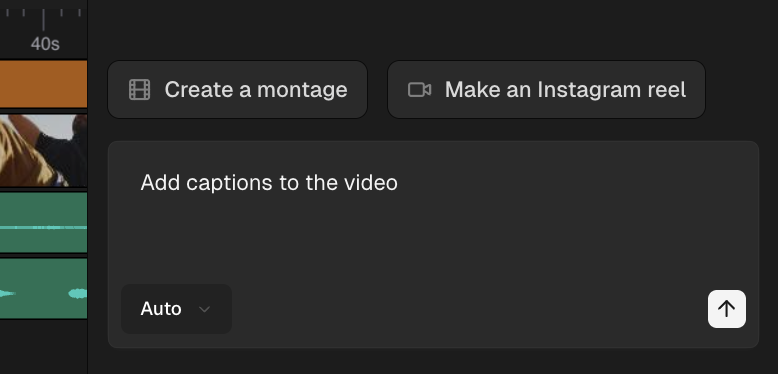 Cardboard will transcribe the audio and generate captions on your timeline.
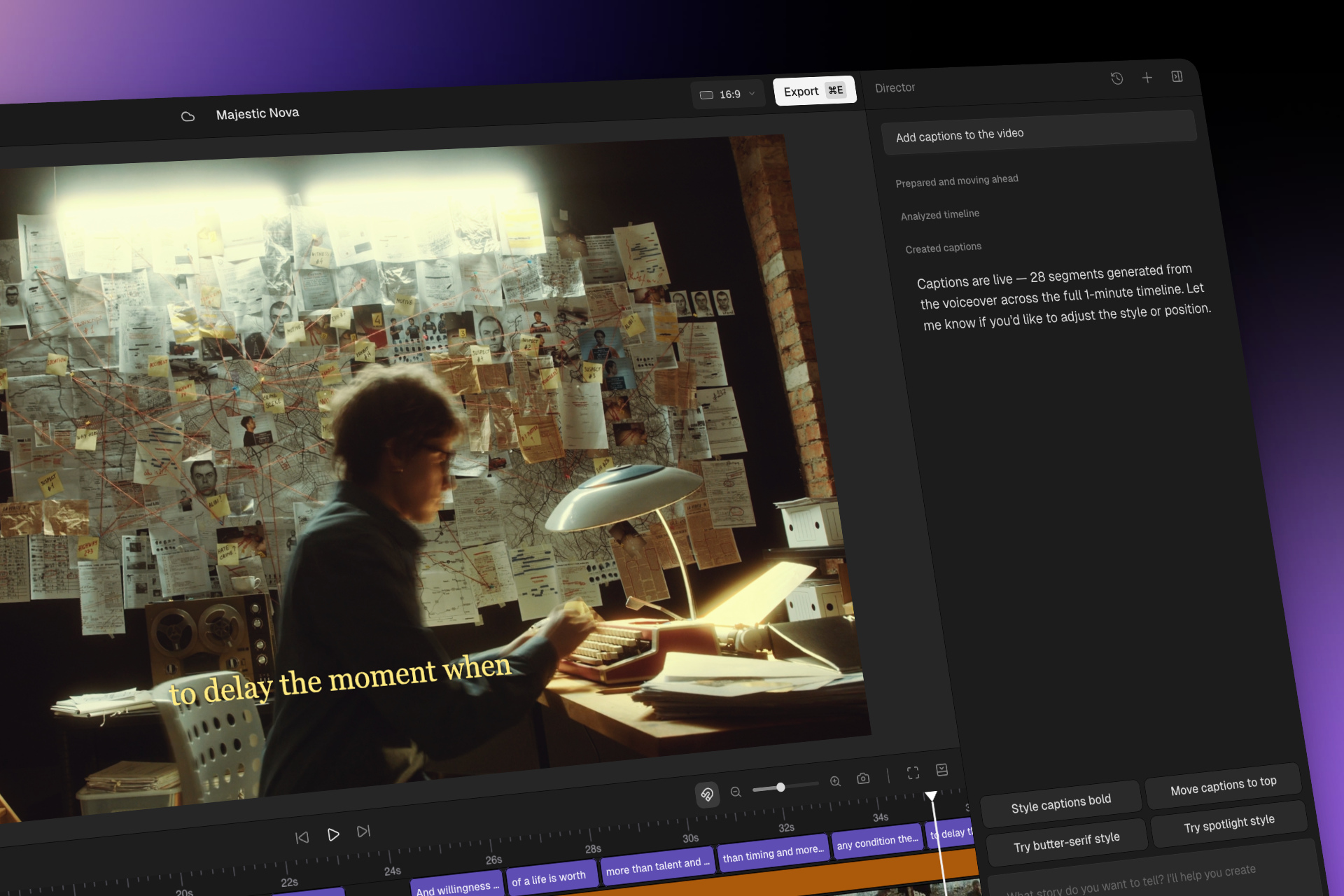 ## Style your captions
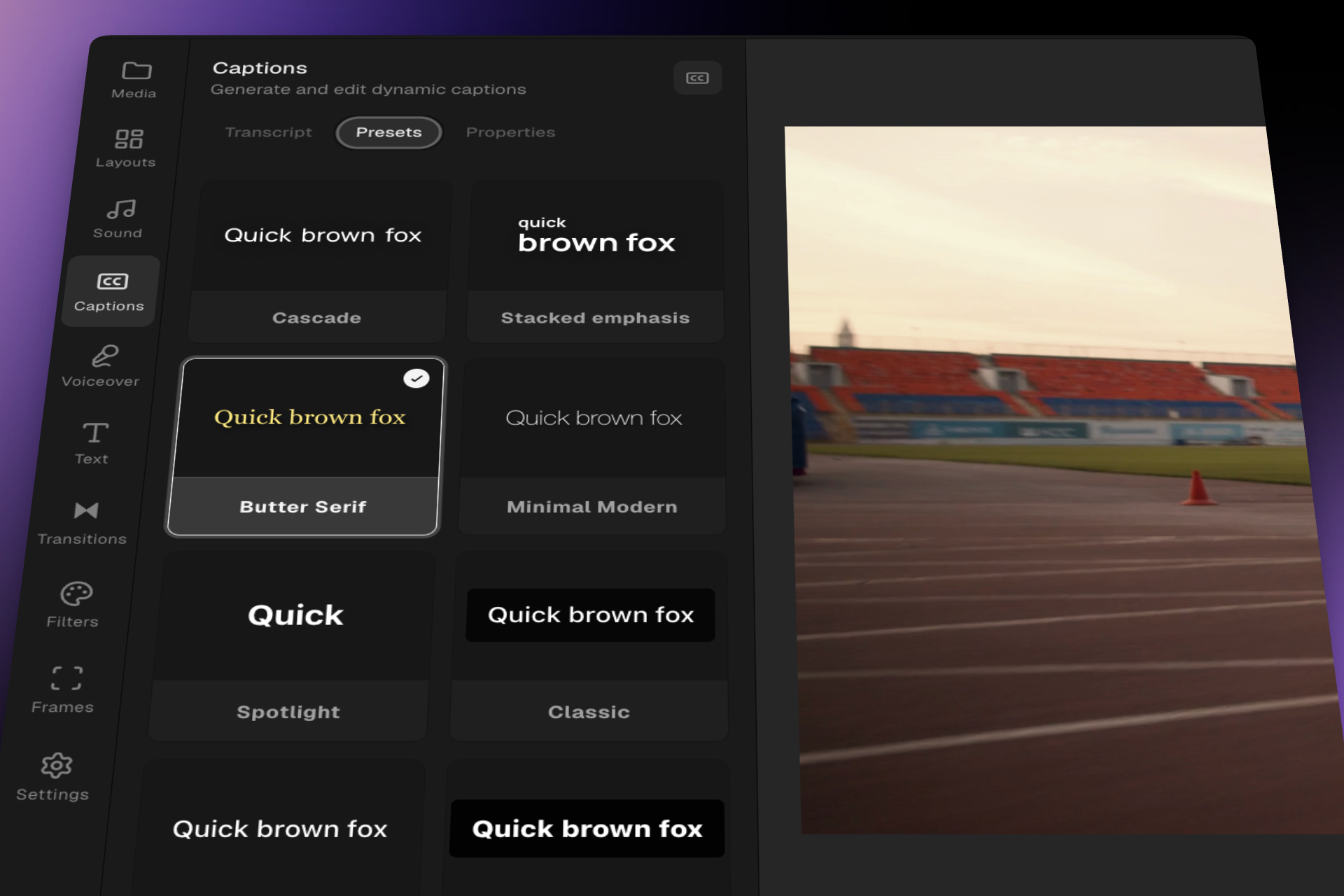
Cardboard includes preset caption styles that you can apply with one click. You can also customize individual style properties.
### Preset styles
Choose from styles designed for different platforms and use cases:
## Style your captions
Cardboard includes preset caption styles that you can apply with one click. You can also customize individual style properties.
### Preset styles
Choose from styles designed for different platforms and use cases:
 ## Edit captions
After captions are generated, you can edit them directly:
* **Fix text** - Click on any caption on the timeline to edit the text
* **Adjust timing** - Drag the edges of a caption to change when it appears and disappears
* **Delete a caption** - Select it and press **Delete** or **Backspace**
* **Split captions** - Break long captions into shorter segments for better readability
You can also ask the AI to make caption edits: "Fix any misspelled words in the captions" or "Break long captions into shorter lines."
## Custom styling
For each caption, you can customize:
* Font, size, and color
* Background color and opacity
* Text position on the screen
* Animation style (fade in, pop in, slide in)
Click on "apply to all" button so that every caption in your project updates to match the style.
## Supported languages
Cardboard can transcribe and generate captions in 20+ languages. Choose "Auto" so that AI auto-detects the spoken language. You don't need to specify it manually.
## What's next?
Add AI-generated voiceovers to your video.
## Edit captions
After captions are generated, you can edit them directly:
* **Fix text** - Click on any caption on the timeline to edit the text
* **Adjust timing** - Drag the edges of a caption to change when it appears and disappears
* **Delete a caption** - Select it and press **Delete** or **Backspace**
* **Split captions** - Break long captions into shorter segments for better readability
You can also ask the AI to make caption edits: "Fix any misspelled words in the captions" or "Break long captions into shorter lines."
## Custom styling
For each caption, you can customize:
* Font, size, and color
* Background color and opacity
* Text position on the screen
* Animation style (fade in, pop in, slide in)
Click on "apply to all" button so that every caption in your project updates to match the style.
## Supported languages
Cardboard can transcribe and generate captions in 20+ languages. Choose "Auto" so that AI auto-detects the spoken language. You don't need to specify it manually.
## What's next?
Add AI-generated voiceovers to your video.