

1
Choose a sample project.
Let’s go ahead with “Vlog”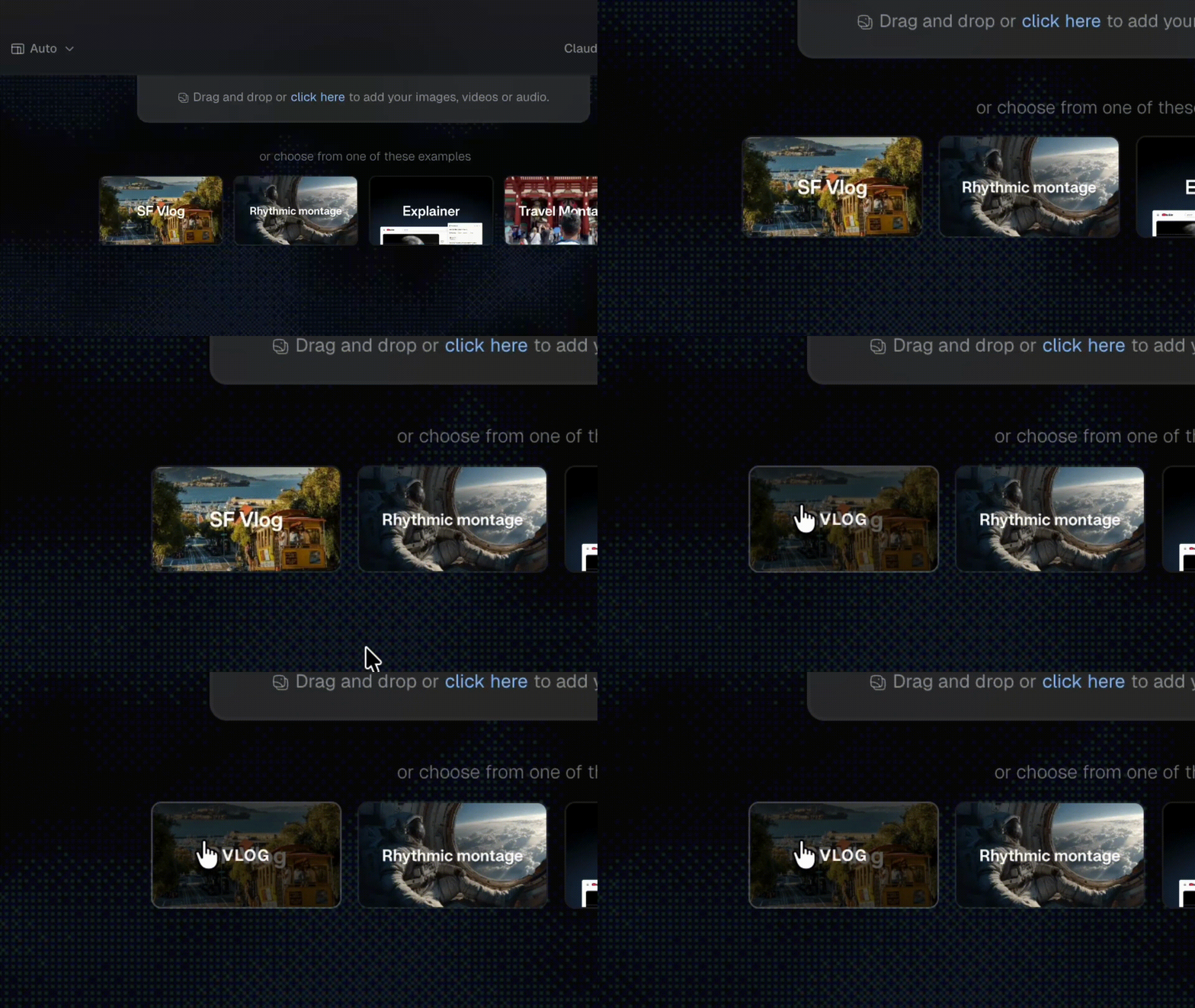
2
Check the prompt and raw footage
The prompt and footage are pre-filled so you can jump straight in. The prompt is: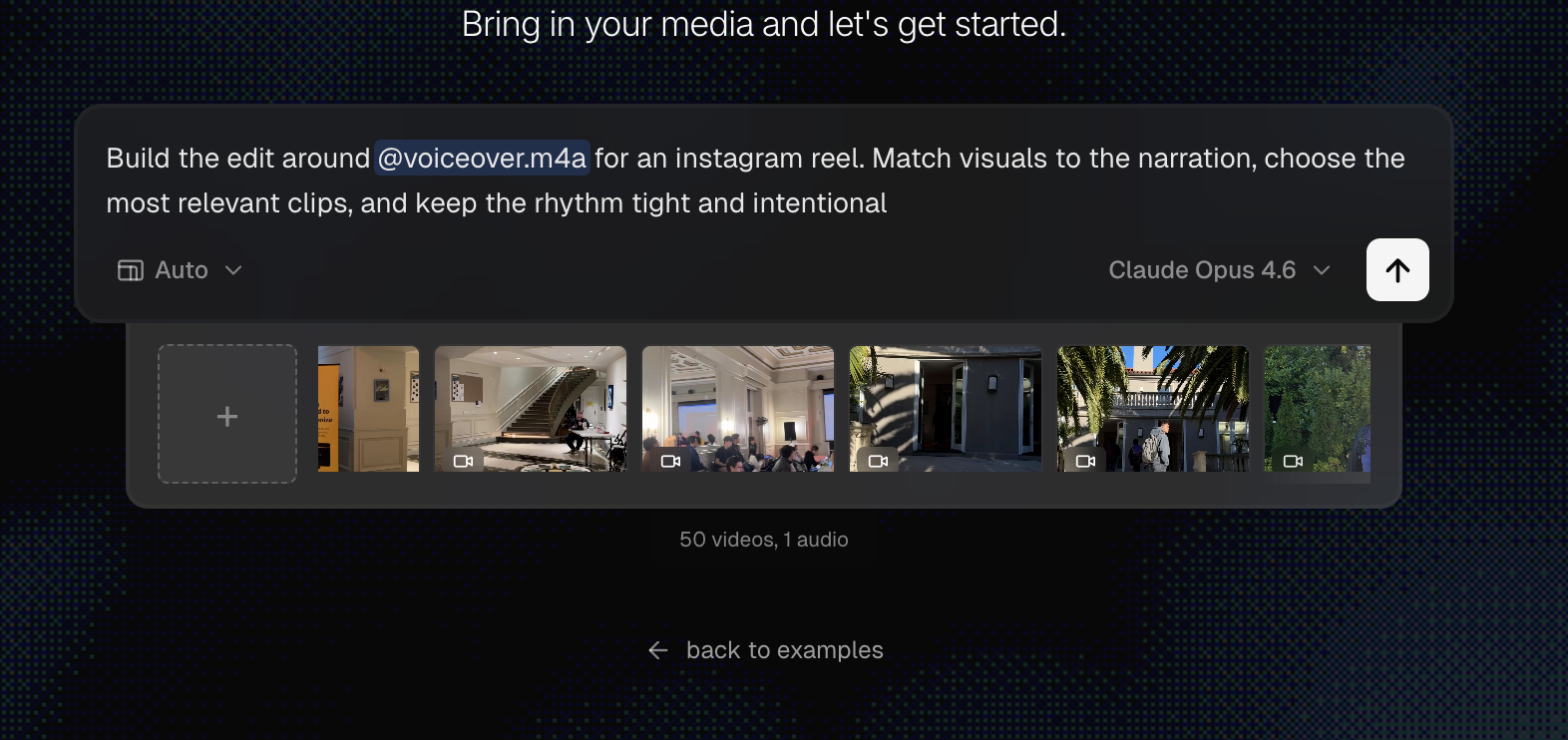
“Build the edit around @voiceover.m4a for an Instagram reel. Match visuals to the narration, choose the most relevant clips, and keep the rhythm tight and intentional”What’s @voiceover.m4a? The ”@” lets you tag specific files. It’s like pointing and saying “Use this one here.”You can see the uploaded raw footage, scroll horizontally to explore the footage!
3
Choose Model and Aspect Ratio
Before you hit send, two quick things:
- Pick your aspect ratio (9:16, 1:1, etc) - Bottom Left
- Choose your AI model - Bottom Right
4
Let the AI Cook!
Cardboard’s working. Grab a coffee. Go for a walk. Scroll some reels.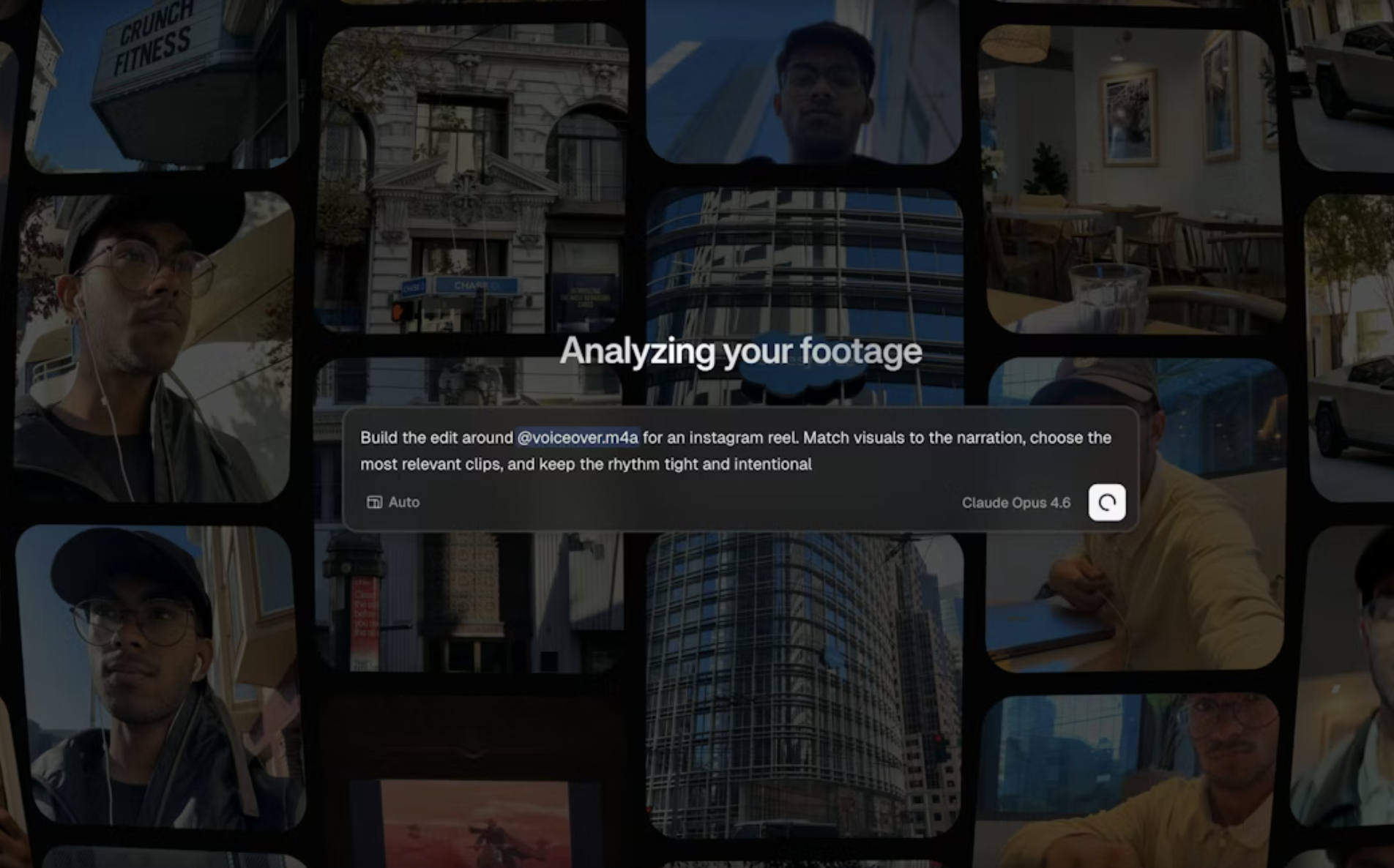
5
Preview your video
Your edit is ready. But the screen looks a little busy, let’s break it down:
- Left panel (Media Library) - All your videos, images, and audio files exist here.
- Centre panel (Canvas) - Your video. Hit Play to watch what AI edited for you.
- Bottom panel (Timeline) - All your clips are sequenced here. Drag them to reorder.
- Right panel (AI Chat) - Keep the conversation going with Cardboard.
6
Export your video
Happy with it? Click “Export” in the top-right corner.Choose the resolution and click “Export Video”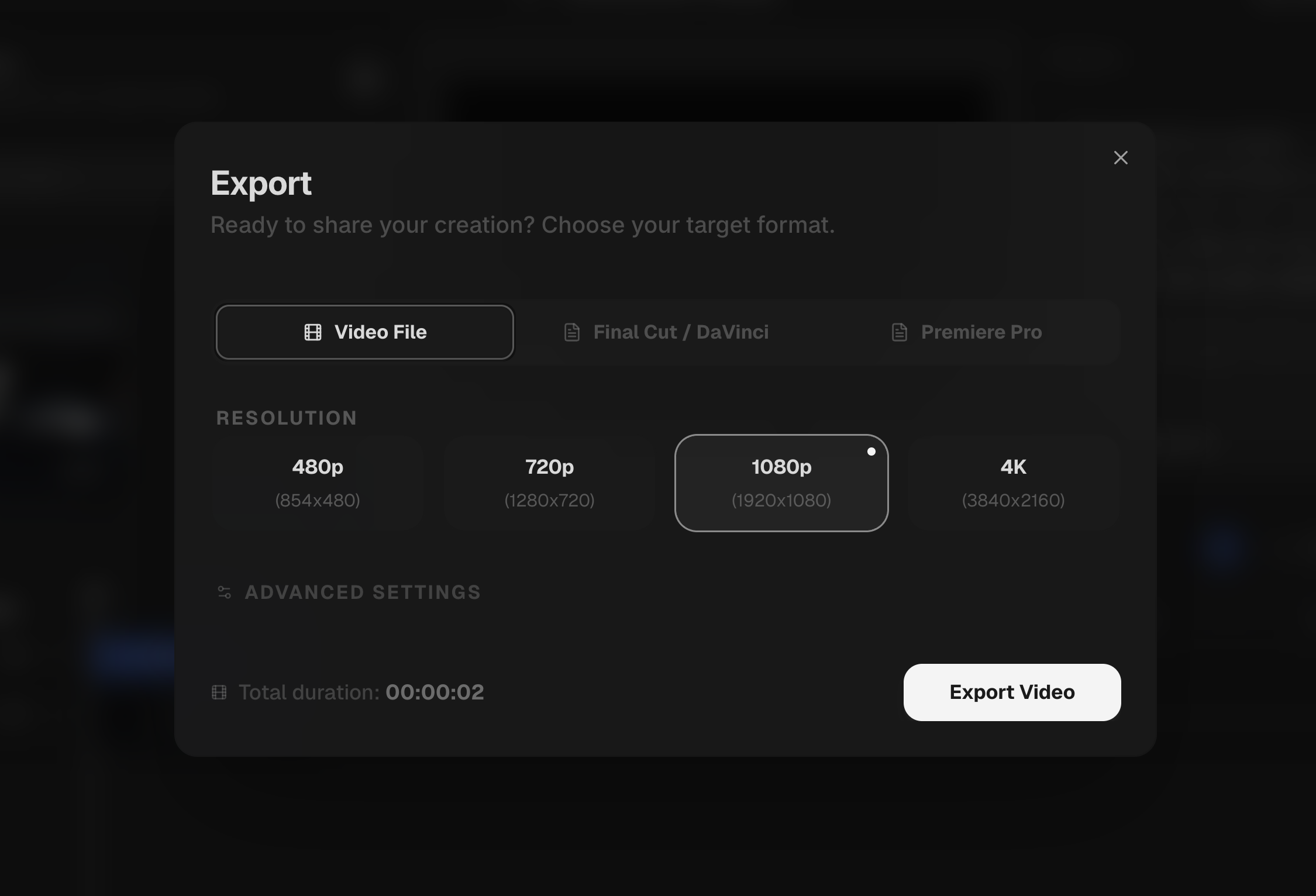
Example prompts to try next
Once you have the basics down, try these prompts in the AI Chat:- “Add a title card that says ‘My First Video’ at the beginning”
- “Add transitions between every clip on the timeline”
- “Add a fade out in the end of video”
Next Steps
How to Talk to Cardboard
Learn how to prompt to get the best results.
Auto-Generated Captions
Add captions to your videos automatically.