

Generate captions
1
Open the AI Chat panel
Click the AI Chat panel on the right side of the editor if it isn’t already open.
2
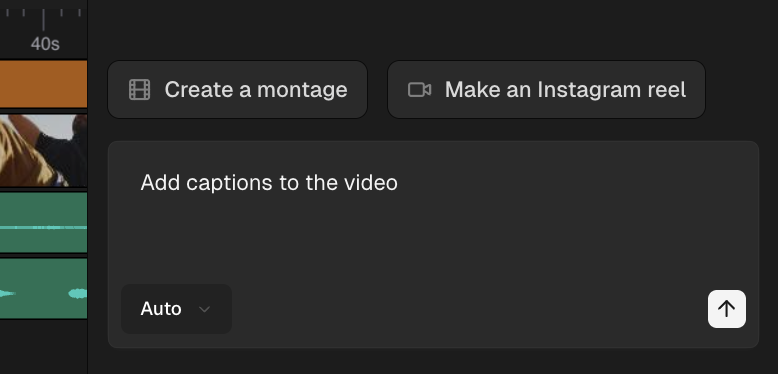
Ask for captions
Type one of these prompts and press Enter:
-
“Add captions to the video”
3
Wait for processing
Cardboard will transcribe the audio and generate captions on your timeline.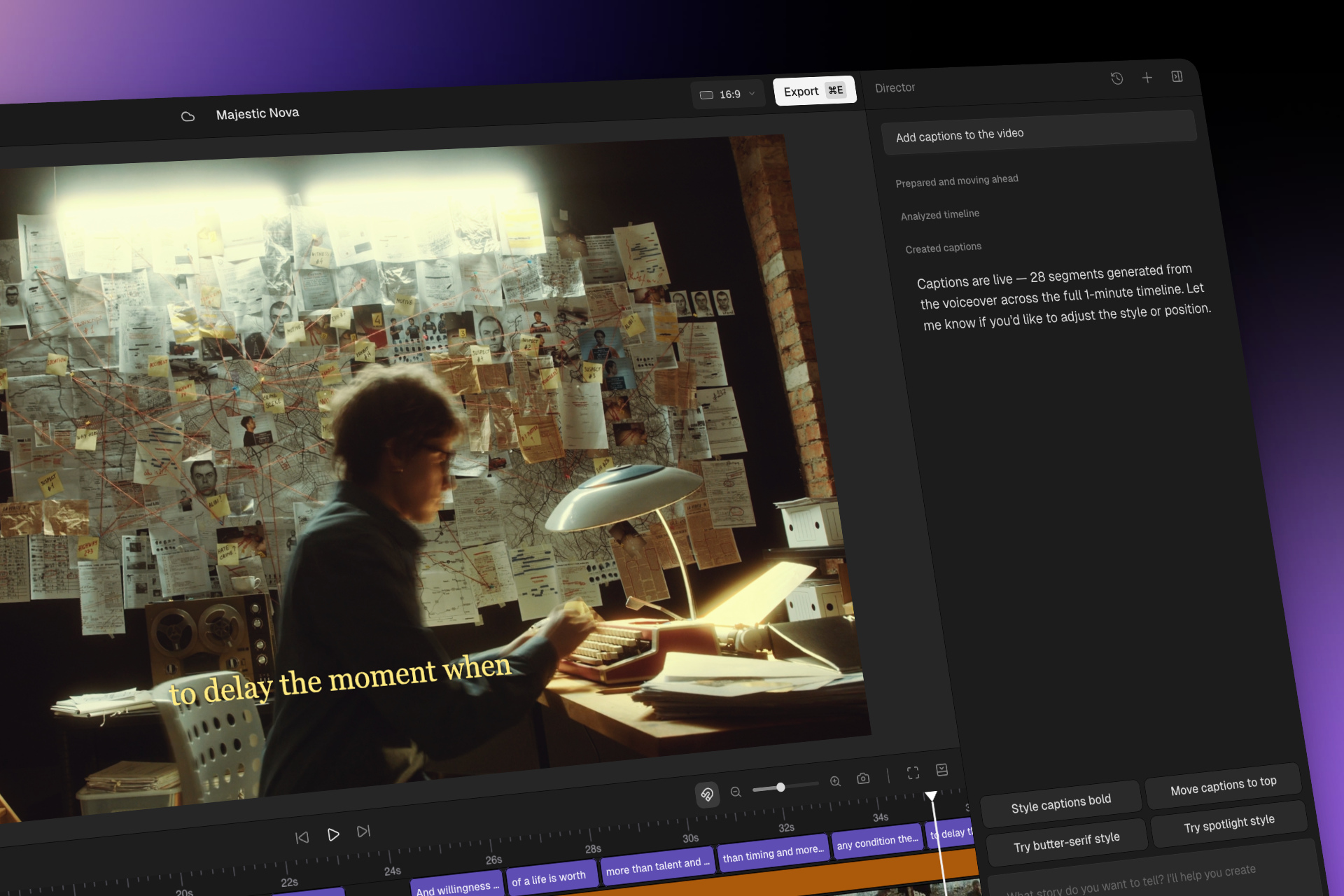
Style your captions
Cardboard includes preset caption styles that you can apply with one click. You can also customize individual style properties.Preset styles
Choose from styles designed for different platforms and use cases: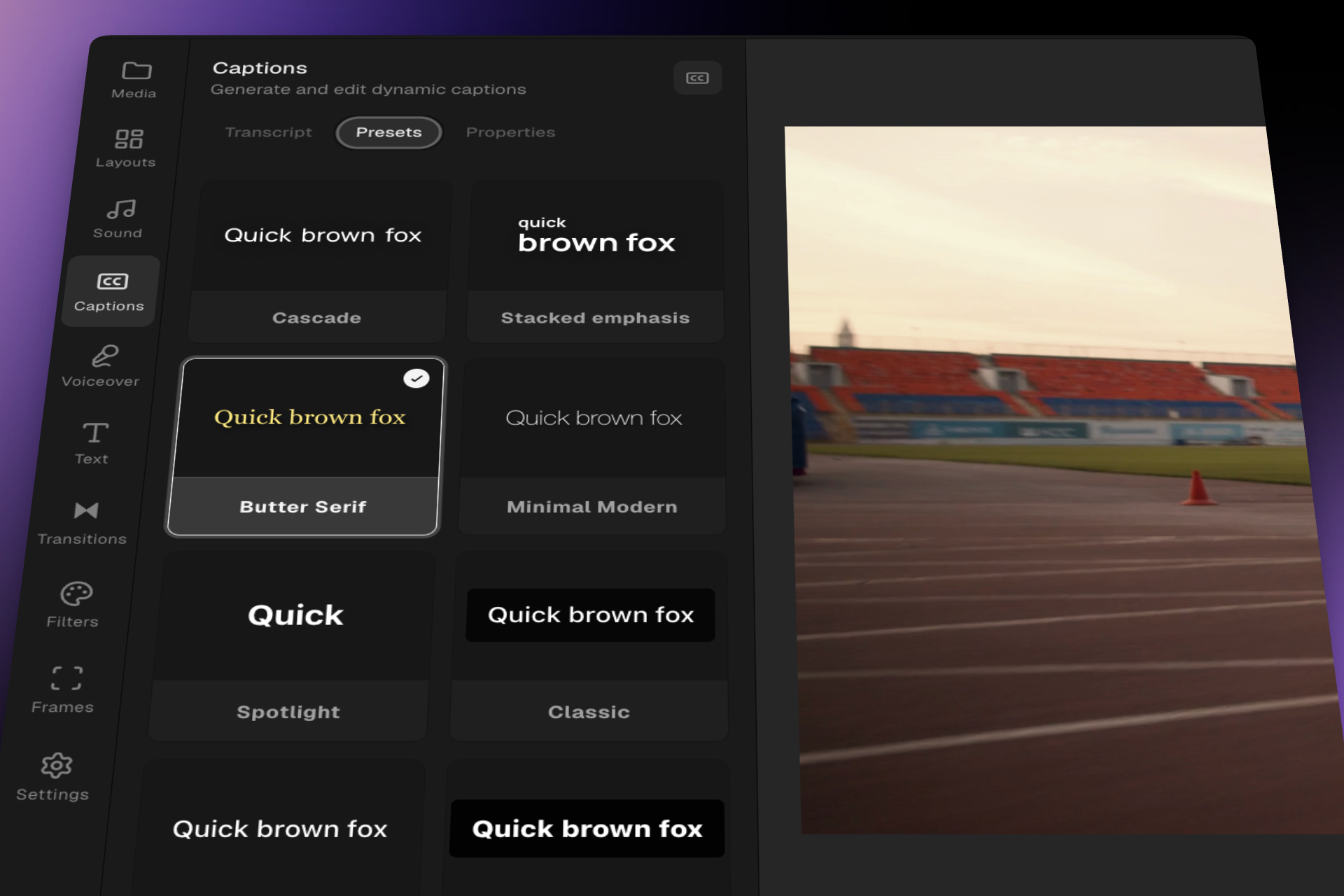
Edit captions
After captions are generated, you can edit them directly:- Fix text - Click on any caption on the timeline to edit the text
- Adjust timing - Drag the edges of a caption to change when it appears and disappears
- Delete a caption - Select it and press Delete or Backspace
- Split captions - Break long captions into shorter segments for better readability
Custom styling
For each caption, you can customize:- Font, size, and color
- Background color and opacity
- Text position on the screen
- Animation style (fade in, pop in, slide in)
Click on “apply to all” button so that every caption in your project updates to match the style.
Supported languages
Cardboard can transcribe and generate captions in 20+ languages. Choose “Auto” so that AI auto-detects the spoken language. You don’t need to specify it manually.What’s next?
AI Voiceovers
Add AI-generated voiceovers to your video.