

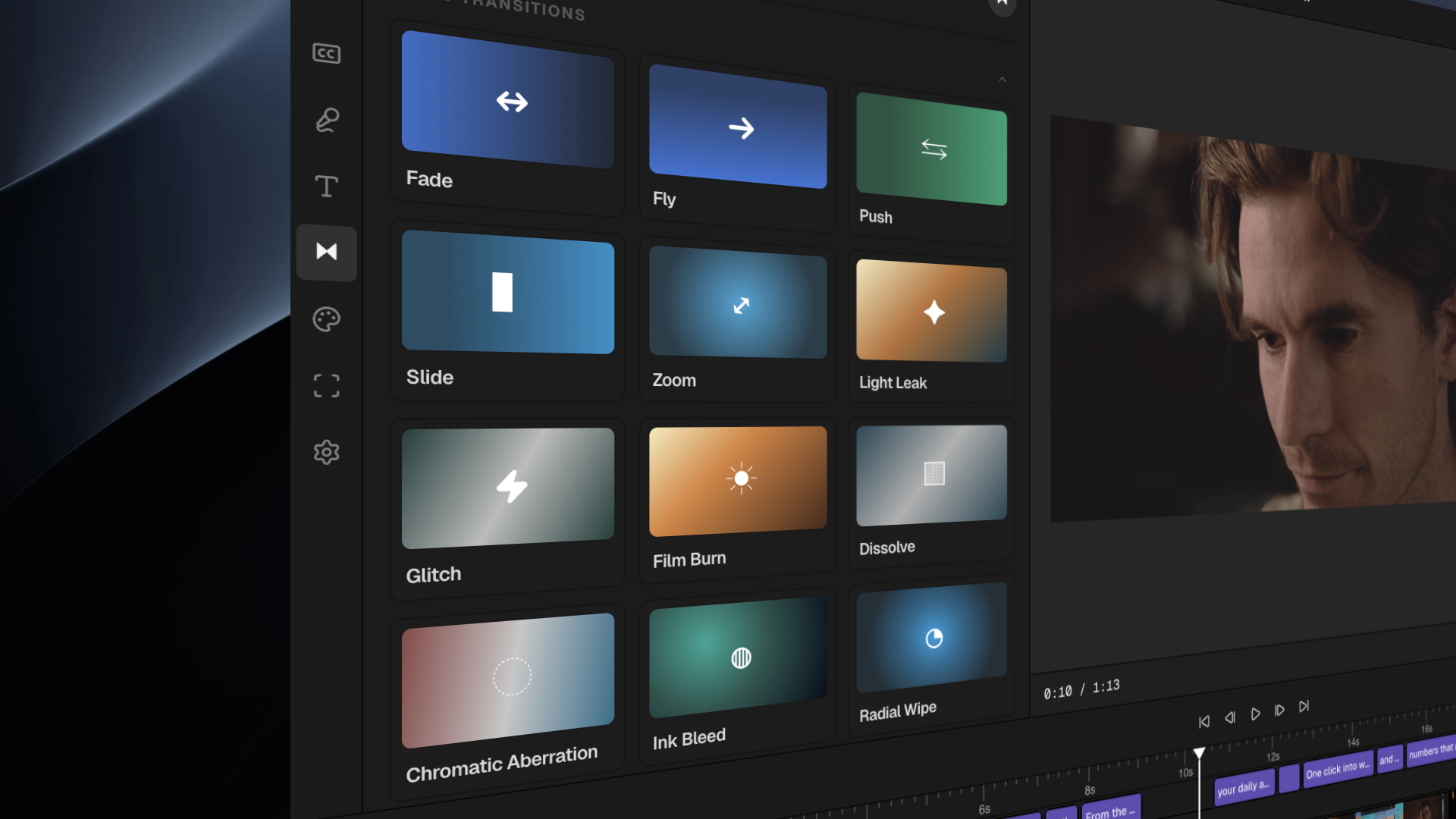
The four panels
Media Library (left panel)
The left panel is your Media Library. This is where all your uploaded files live — videos, images, and audio. You can:- Drag and drop files to upload them
- Search your media using natural language (for example, “sunset shots” or “interview clips”)
- Preview any file before adding it to the timeline
Canvas (center panel)
The center panel is the Canvas — your video preview window. This is where you see what your final video looks like. Use the playback controls to play, pause, and scrub through your video.Timeline (bottom panel)
The Timeline runs along the bottom of the editor. This is where you arrange and edit your clips. You can:- Drag clips to rearrange them
- Trim clips by dragging their edges
- Split clips at the playhead
- Stack multiple tracks for overlays, text, and audio
- Zoom in and out for precision editing
AI Chat (right panel)
The AI Chat panel on the right is where you talk to Cardboard’s AI. Type any editing instruction in plain English and the AI will apply it to your project. See Editing with AI Chat for a full guide.Top toolbar
The toolbar at the top of the editor gives you quick access to:- Undo / Redo — reverse or reapply any action
- Export — render and download your finished video
- Project settings — change canvas size, frame rate, and background color
- Save — your project auto-saves, but you can also save manually
Keyboard shortcuts
Playback
Playback
- Space — Play / Pause
- L — Play forward
- J — Play backward
- Left arrow — Move playhead back one frame
- Right arrow — Move playhead forward one frame
Editing
Editing
- S — Split clip at playhead
- Delete / Backspace — Delete selected clip
- Cmd/Ctrl + Z — Undo
- Cmd/Ctrl + Shift + Z — Redo
- Cmd/Ctrl + C — Copy clip
- Cmd/Ctrl + V — Paste clip
Navigation
Navigation