

Sign up and open the editor
Go to usecardboard.com/app/home and create a free account. Once you are in, click New Project to open the editor.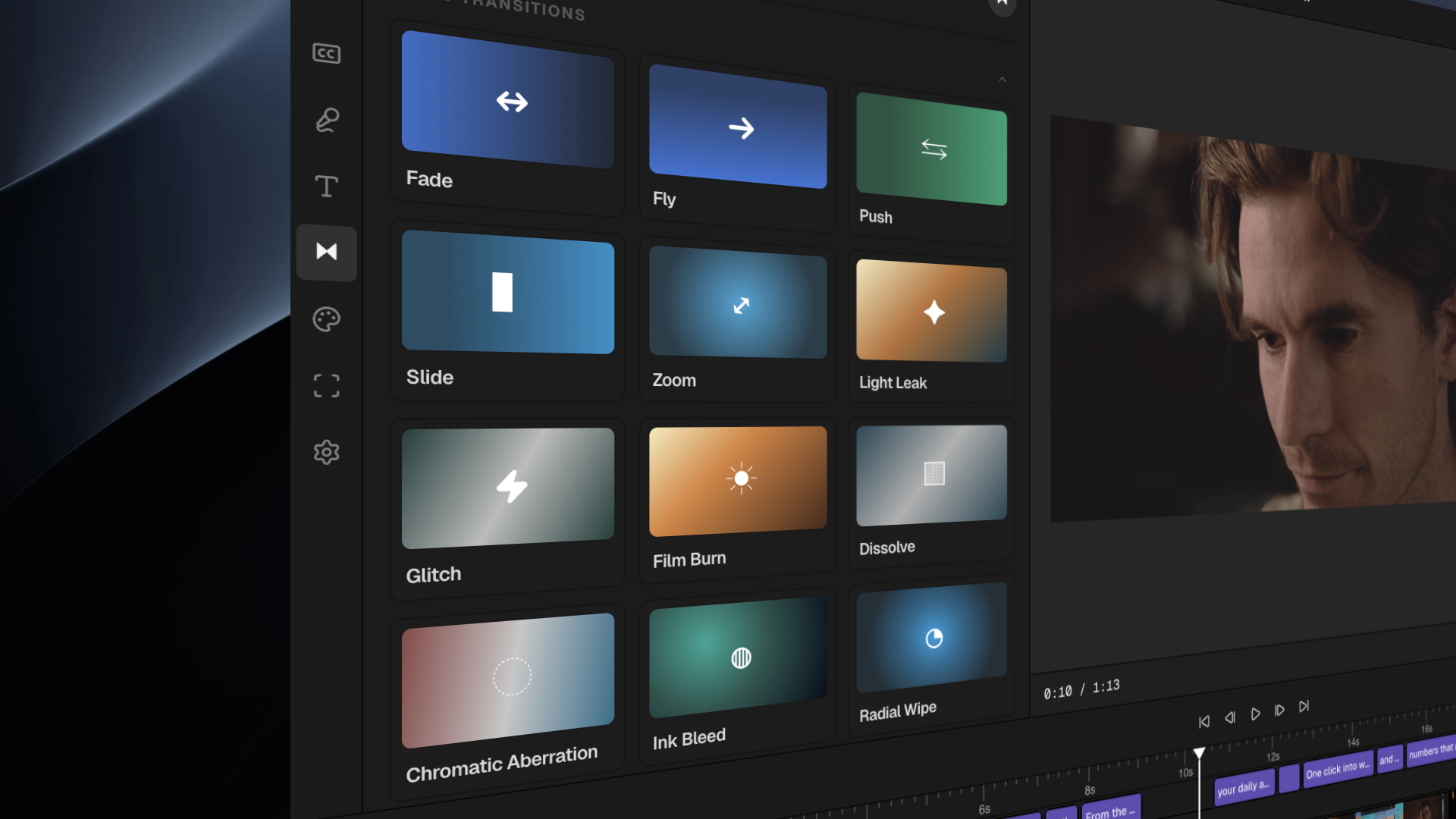
Upload your media
Drag and drop video files, images, or audio into the Media Library panel on the left side of the editor. You can also click Upload to browse your files.Cardboard supports MP4, MOV, WebM, MP3, WAV, PNG, JPG, and GIF files.
Add clips to the timeline
Click on any media file in your library and drag it onto the Timeline at the bottom of the screen. You can add multiple clips — they will play in order from left to right.
Give the AI an editing command
Open the AI Chat panel on the right side of the editor. Type a plain-English instruction and press Enter. Here are some commands to try:
- “Trim this video to the most exciting 30 seconds”
- “Add captions to the entire video”
- “Create a fast-paced montage with transitions”
- “Remove all the silent parts”
- “Add upbeat background music”
Preview your video
Click the Play button on the canvas in the center of the editor to preview your video. If you want to make adjustments, type another instruction in the AI Chat or manually drag clips on the timeline.
Example prompts to try next
Once you have the basics down, try these prompts in the AI Chat:- “Add a title card that says ‘My First Video’ at the beginning”
- “Speed up the middle section to 2x”
- “Add a fade transition between every clip”
- “Make this video vertical for Instagram Reels”
- “Find the funniest moment and make it a 15-second clip”